
Set up AntiScam Pango
Turn on protection in two steps.
Last updated on 2 November 2026
When you first open AntiScam Pango, it will ask you for three permissions. The first two are necessary. The third one is optional.
Note: The exact names and steps may vary between phone brands. If you can't find a setting, search for it in your phone's Settings.
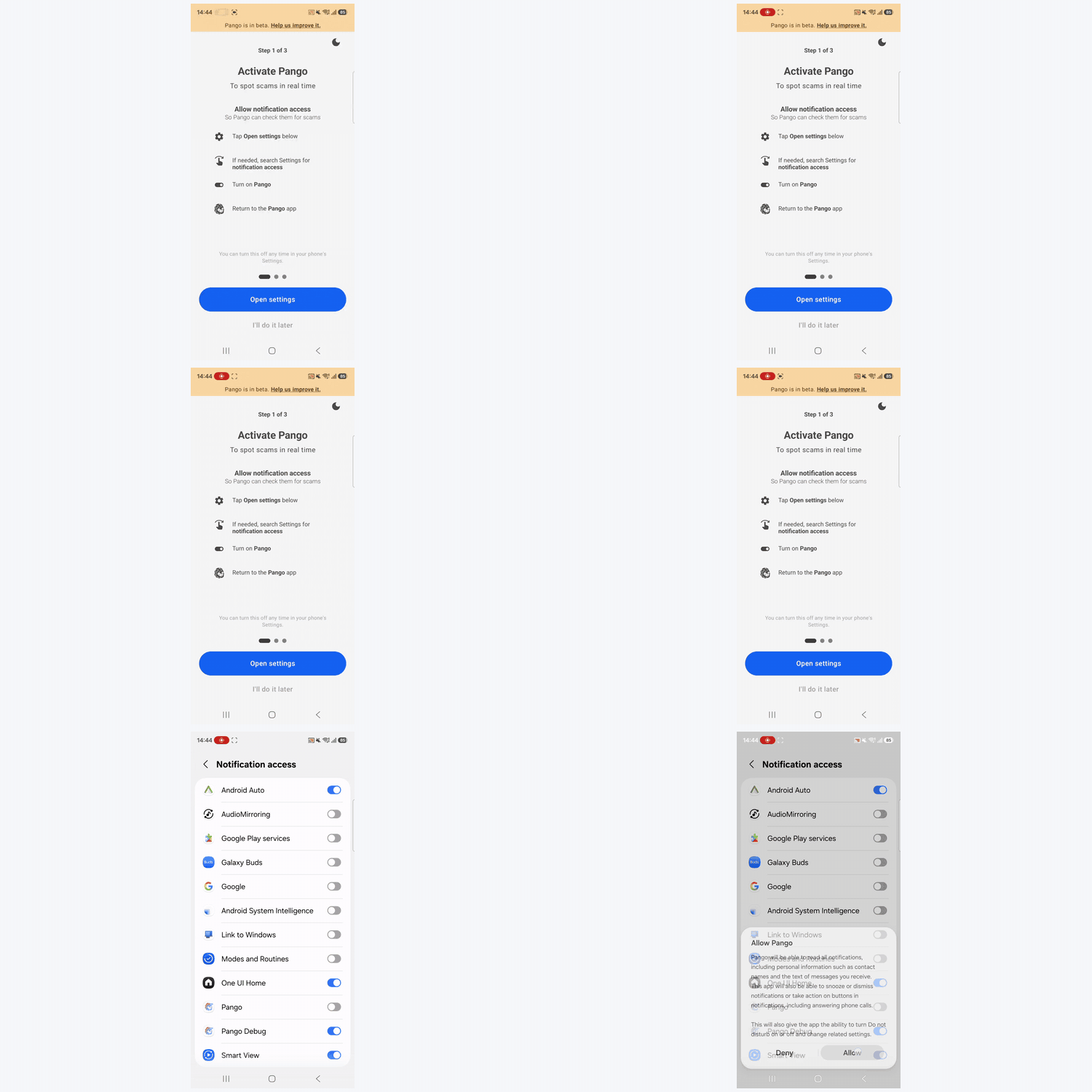
Step 1: Allow notification access
Pango reads new messages as they arrive as notifications. This lets Pango check them for scams.
Tap Open settings. This usually takes you straight to the right page in your phone's Settings.
If it doesn't, search your phone's Settings for notification access.
Turn on Pango.
Return to the Pango app.
Android will ask you to confirm that Pango can read your notifications. Pango's AI checks them entirely on your phone, and they only leave your phone if you choose to report a scam. You can turn this off any time in your phone's Settings, but Pango can't check new messages without it.
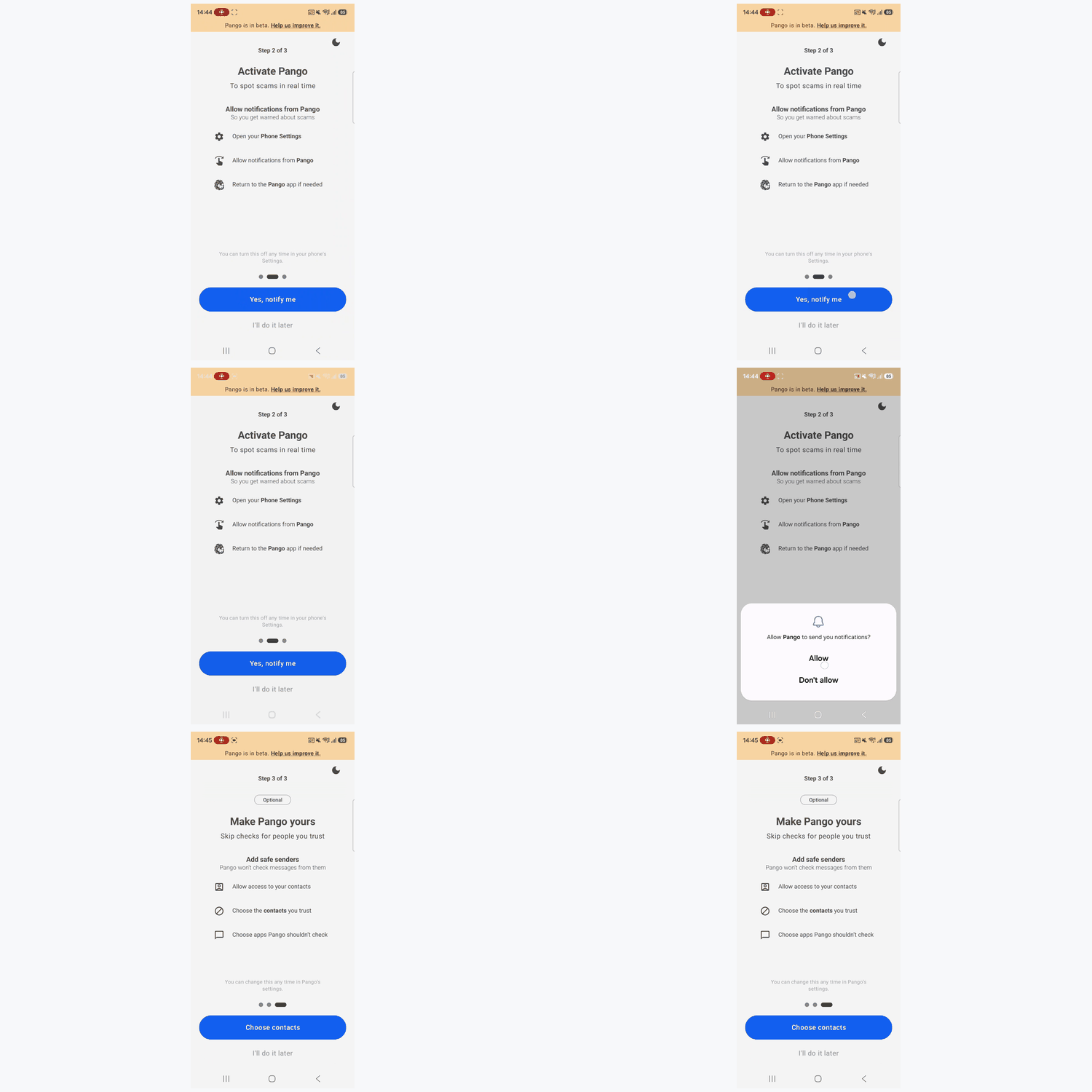
Step 2: Allow notifications from Pango
When a message looks suspicious, Pango sends you a notification. This lets Pango warn you about scams. If this is off, you won't get scam alerts.
Tap Yes, notify me.
Allow notifications from Pango.
Return to the Pango app if needed.
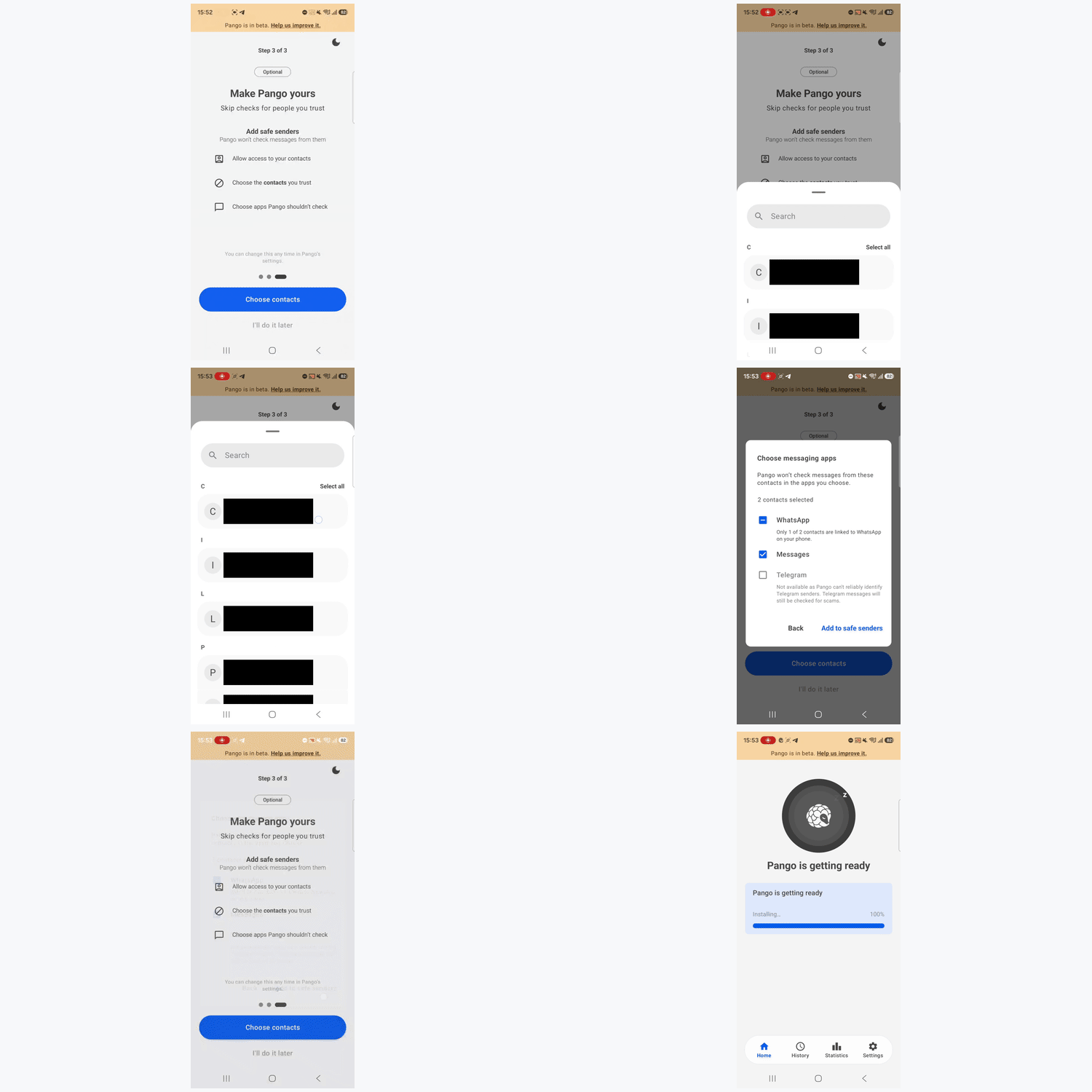
Step 3 (optional): Add safe senders
Pango won't check messages from safe senders. You can skip this step and add them later under Settings > Safe senders.
Tap Choose contacts, then Allow. Your contacts stay on your phone.
Choose the contacts you trust.
Choose apps Pango shouldn't check.
Only add people you trust. If a safe sender's account is ever taken over, you won't be warned about messages from them.
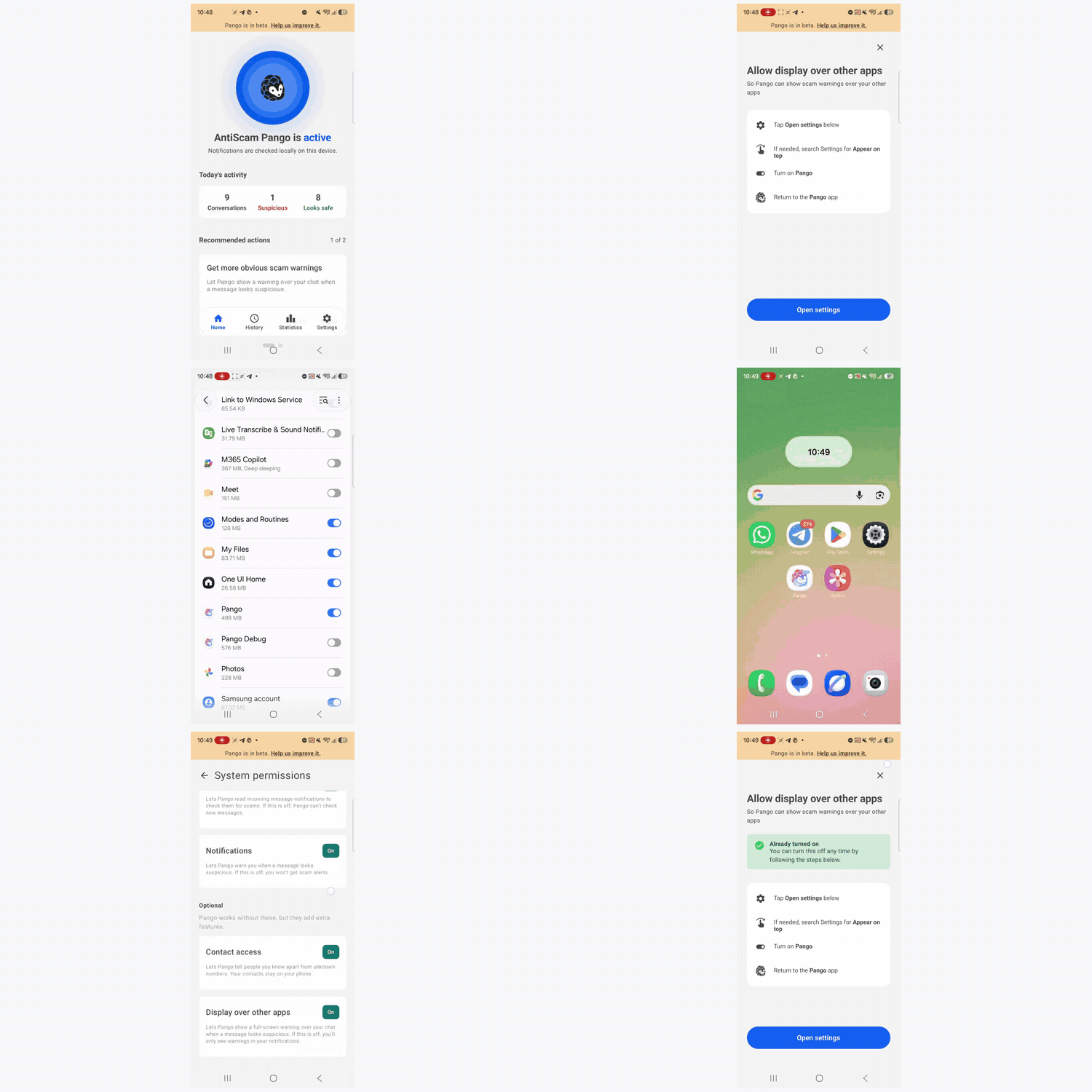
Recommended: Get more obvious scam warnings
After setup, Pango's home screen shows a card called Get more obvious scam warnings. Turn it on so Pango can show a warning on your screen, over your other apps, when a message looks suspicious. If it's off, you'll only see warnings in your notifications.
Tap Allow on the card. This usually takes you straight to the right page in your phone's Settings.
If it doesn't, search your phone's Settings for Appear on top.
Turn on Pango.
Return to the Pango app.
To check it’s on, go to Pango’s Settings > System permissions. Display over other apps should show On.
Check that Pango is active
When setup is done, your home screen shows AntiScam Pango is active. If you see Finish setting up Pango, tap Set up next to the permission that's still off.
Not getting alerts? See I am not receiving any alerts. What should I do? (opens in new tab)
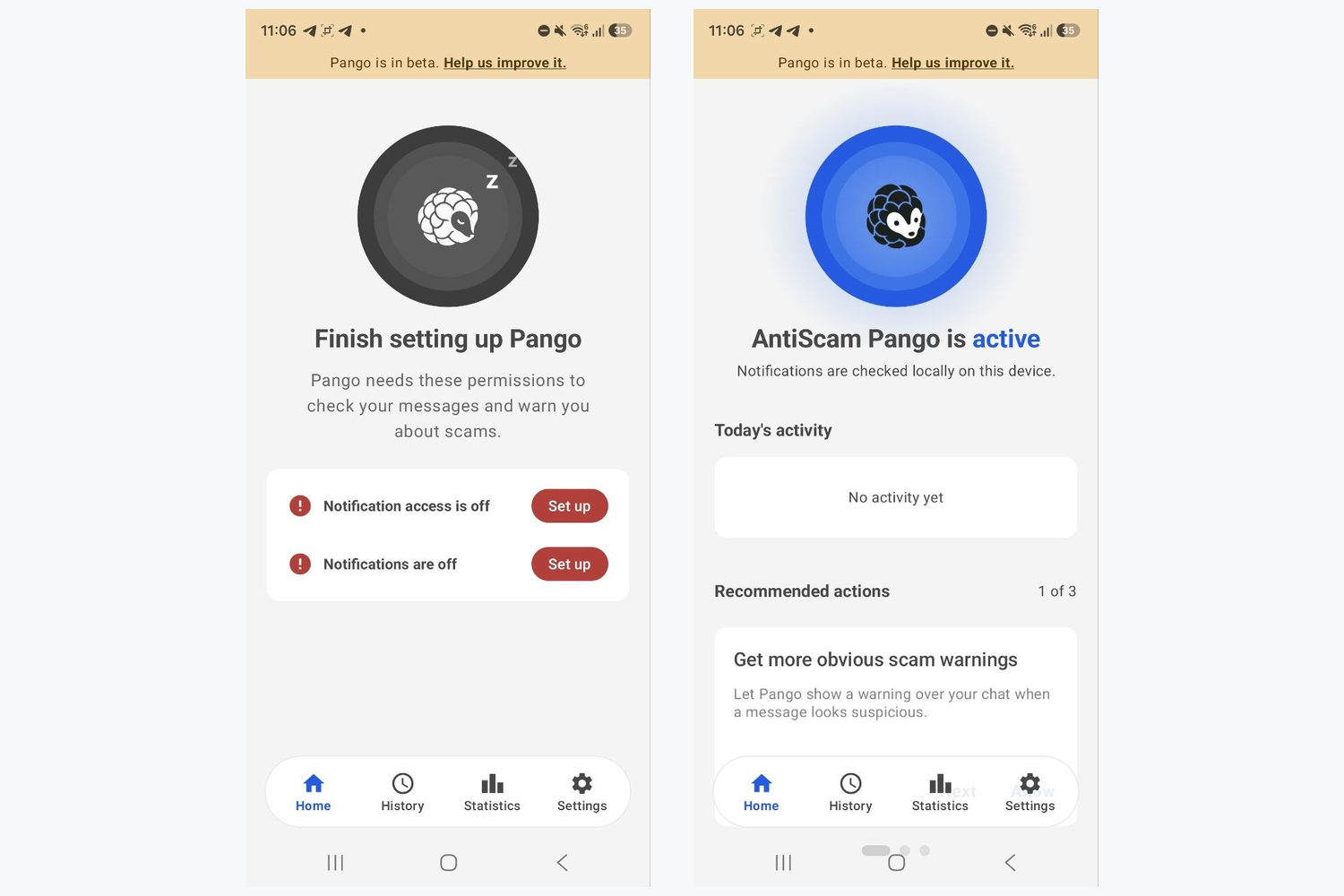
Left: Tap Set up to turn on any permission that’s still off. Right: Pango is active.